
Set Up a Bitbucket Repository in cPanel
Bitbucket is a git based source code management (SCM) platform built for team collaboration to make code development simple and easy. Learn how to set up a Bitbucket private repository in cPanel instead of traditional file uploads via file manager clients.
A Git repository in cPanel has its benefits, as it provides a centralized source for changes in code. Pulling changes in the cPanel repository is way easier and faster than manual file uploads. This post explains step by step how to configure the git repository in cPanel. Before you start, make sure you have:
- Git Version Control support in cPanel.
- Terminal is enabled in cPanel. Required for creating SSH keys, etc.
How to Clone a Git Repository in cPanel
It is easy and simple to clone a repository in cPanel. The following are the main steps to clone a private git repository in cPanel:
- Create a Bitbucket repository.
- Create SSH Keys in cPanel.
- Assign SSH Keys to the Bitbucket repository.
- Clone the Bitbucket repository in cPanel.
Step 1: Create a Bitbucket Repository
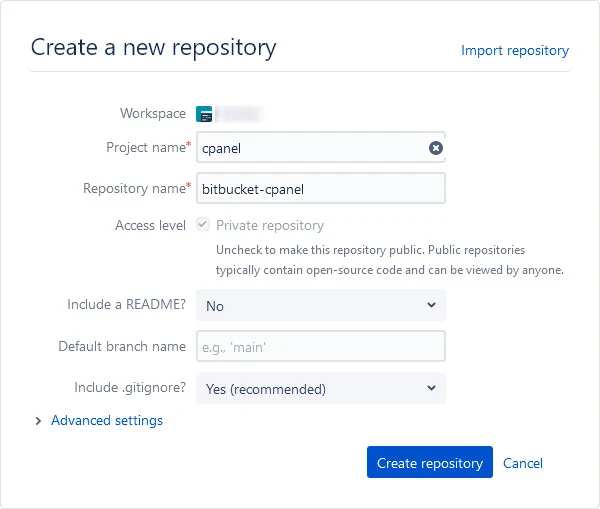
- Log in to your Bitbucket account.
- Navigate to the correct workspace. If you need to select a different workspace, click the user avatar icon on the top right. Then click "All Workspaces".
- Click the "Create" button in the top menu and then click "Repository" in the dropdown.
- Select a project or create a new one.
- Enter a name for the repository.
- Check Access Level to Private Repository.
- Click "Create repository".
Step 2: Create SSH Keys in cPanel
Now that we have created our repository, we need to generate SSH keys before cloning the repository.
- Log in to your hosting server's client area and navigate to cPanel.
- Open "Terminal" and run this command to generate the SSH key:
ssh-keygen -t rsa -f ~/.ssh/bitbucket-cpanel -b 4096 -C "bitbucket-cpanel"
-t rsa: indicates the algorithm of the SSH key.
-f ~/.ssh/bitbucket-cpanel: indicates the name of the SSH key, including the path where the key will be stored.
-b 4096: indicates the size of the SSH key.
-C "bitbucket-cpanel" indicates a comment for the SSH key. Useful in case you have multiple keys for different repositories. This comment will help to identify the key.
After you have run this command, it will ask for a passphrase. Leave it empty and press Enter twice. - Run this command to create an SSH configuration file
touch ~/.ssh/config
- Run this command to change the permissions of the SSH config file.
chmod 0600 ~/.ssh/config
- Run this command to change the user of the SSH config file.
chown user:user ~/.ssh/config
Replace user in "user:user" with your cPanel username. - Now open ~/.ssh/config file in the file manager and add the following to the file.
Host bitbucket.org
AddKeysToAgent yes
Hostname bitbucket.org
IdentityFile ~/.ssh/bitbucket-cpanel
Step 3: Assign SSH Key to Bitbucket Repository
Now that we have created our SSH keys, we need to add them to our Bitbucket repository. So head back to the Bitbucket repository.
- Click "Repository Settings" in the left-side menu.
- Click "Access Keys" in the left-side menu.
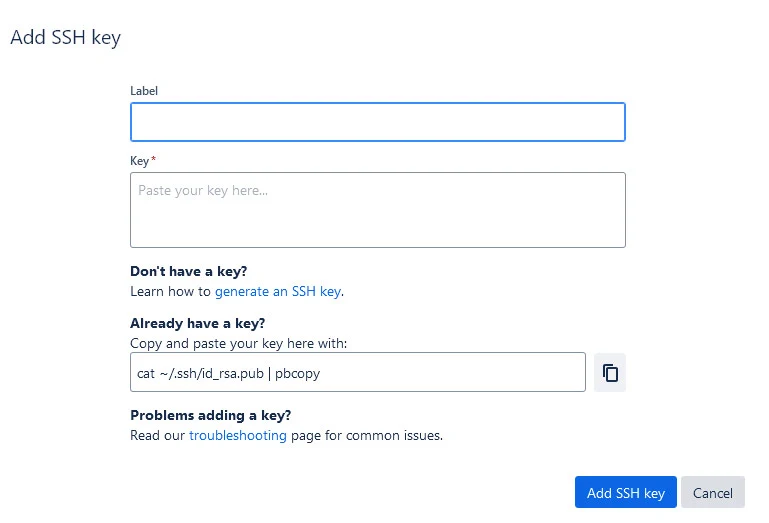
- Click the "Add Key" button.
- Enter a nice descriptive label for the key.
- Copy and paste the contents of "~/.ssh/bitbucket-cpanel.pub" either by opening it in cPanel or running the command "cat ~/.ssh/bitbucket-cpanel.pub", which will output the content of the key file in the terminal. You can copy it from the terminal.
- Finally, click "Add SSH Key".
Step 4: Clone The Bitbucket Repository in cPanel
Now that we have added our key in Bitbucket, we can clone the repository in cPanel in two different ways: one is cloning it via a Terminal command, and the other is using the Git Version Control tool of cPanel.
4.1: Clone Repository via Terminal:
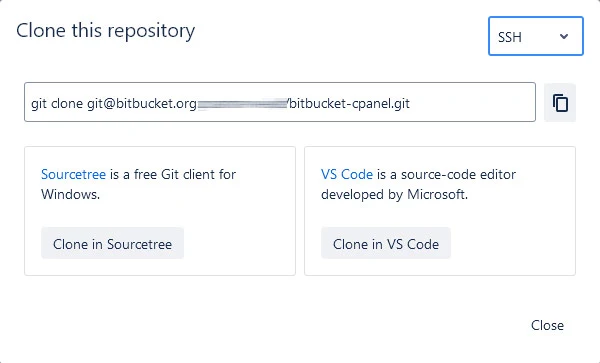
- Go to the repository home in Bitbucket.
- Clone the SSH URL of the repository from the clone modal.
- Head back to the cPanel terminal.
- Navigate to the directory where you want to clone this repository.
- Paste the clone command you copied from Bitbucket.
- Wait for cloning to complete, and that is it.
4.2: Clone Repository via Git Version Control:
I personally recommend this way to create/clone a repository via Git Version Control Tool, as it will also create logs of commits and pulls. To clone the repository via Git Version Control Tool:
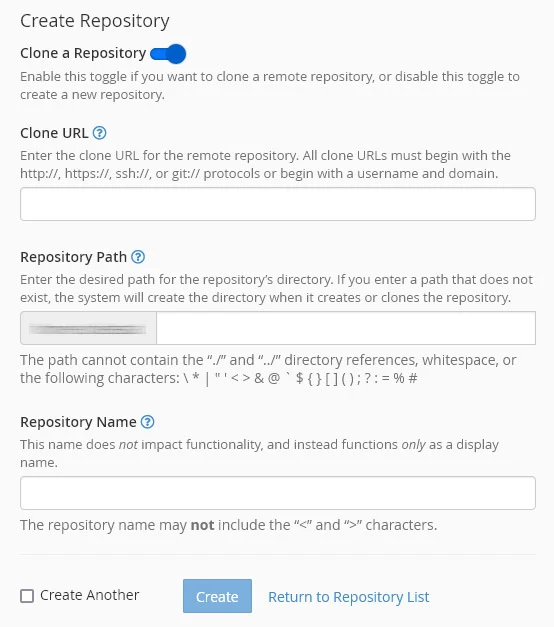
- Go to Git Version Control under the "Files" section of your cPanel Tools.
- Click the "Create" button.
- Turn the option "Clone Repository" on if it is not on by default.
- Enter the clone URL of your repository in the URL field. The URL should be in this format "[email protected]:username/bitbucket-cpanel.git" where username is your Bitbucket username.
- Once the repository is detected, the "Repository Path" and "Repository Name" will be automatically filled. You can still change it as per your directory structure.
- Click "Create", and that is it.
You can now pull changes in the cPanel repository manually by accessing the Terminal or via SSH Agent from your local machine. In the next post, we will implement auto deployment for this repository, so whenever changes are pushed to this repository, they will be updated in cPanel as well.